
GitHub repo guide
GitHub social preview image size: 1280×640px
GitHub shows this image whenever someone shares your repository link. Upload it at 1280 × 640 px, under 1 MB. GitHub serves exactly what you upload, so X, LinkedIn, Slack, Discord and iMessage each draw it their own way. This page shows where those crops fall, and you can check your own image below before you upload it.
Recommended size
1280 × 640px
Aspect ratio
2.00:1
File limit
under 1 MB
File requirements: PNG, JPG or GIF (PNG transparency supported), under 1 MB.
GitHub Docs recommends 1280 × 640 for the best display and requires at least 640 × 320. Do not export at 2x: a 2560 × 1280 PNG usually breaks the 1 MB limit.
Check your social preview before you upload it
Drop in your image to check it against GitHub's limits, see it on light and dark backgrounds if it is transparent, and see the crops link cards apply. Over 1 MB? Shrink it here.
What GitHub stores and large cards show.
Our reading of a 1.91:1 card, centred.
Small link previews often centre-crop to a square.
GitHub social preview image specs
With no custom image, GitHub generates a card for the repository at 1200 × 600 (read from the og:image tags on a repository page). Upload your own to replace it. GitHub serves a custom upload as is, without resizing it to 2:1, so an off-ratio image is cropped differently by every app that unfurls the link.
| GitHub Docs says | |
|---|---|
| Recommended size | 1280 × 640 px for the best display |
| Minimum size | 640 × 320 px |
| Shape | 2:1 |
| Formats | PNG, JPG or GIF |
| File size | Under 1 MB |
| Transparency | Supported in PNG, but the image may be shown on different backgrounds, dark ones included |
How to add or change it
- •1. Open the repository's Settings. You need permission to change the repository's settings.
- •2. Find Social preview. It is on the General settings page.
- •3. Click Edit, then Upload an image. Choose your 1280 × 640 file. Remove image puts the generated card back.
- •4. Re-scrape where it was already shared. X, LinkedIn, Slack and Facebook cache cards. LinkedIn's Post Inspector and Facebook's Sharing Debugger force a refresh; elsewhere, sharing the link with a query string such as ?v=2 gets a fresh card.
Where your preview gets cropped
Each app fits the image to its own card shape. The figures below are ratio arithmetic on a 1280 × 640 canvas, our reading rather than any app's documentation, and the preview above draws them for your own file.
| Card shape | What a 1280 × 640 image loses | Seen in |
|---|---|---|
| 2:1, full card | Nothing | Large cards (X summary_large_image, Slack, Discord) |
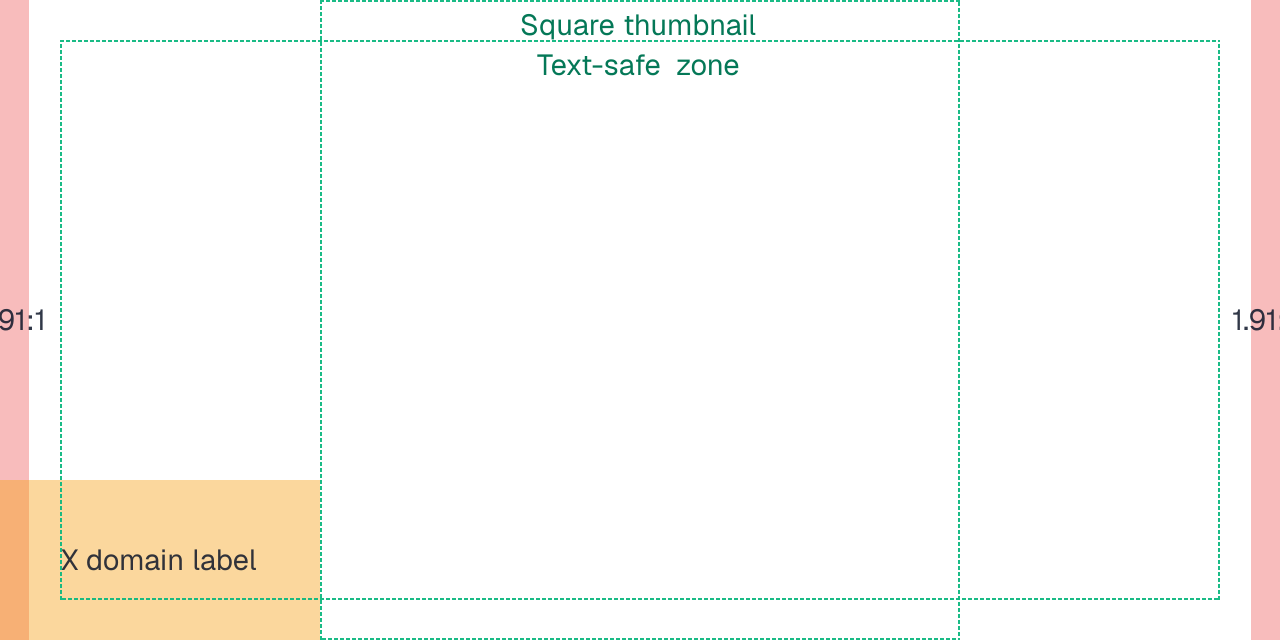
| 1.91:1, centred | About 29 px from each side | LinkedIn and Facebook link posts |
| Square, centred | x 0 to 320 and x 960 to 1280 | Small thumbnails in chat apps |
- •Text-safe zone. Keep text inside roughly the centred 1160 × 560 and put the logo or repository name in the centre 640 × 640, so a square thumbnail still reads.
How X shows your repo link: card crop and domain label
GitHub marks repository pages with twitter:card summary_large_image, so X shows the image as a large card. X lays the domain over the lower-left corner of the image, so keep the repository name and logo out of the bottom-left quarter.
X reads twitter:image first and falls back to og:image; GitHub sets both to your upload. X retired the preview in its Card Validator, so the only way to see the card before posting is the post composer. X caches a card for about a week: after changing the image, share the link with a query string such as ?v=2 to get a fresh one.
How it looks in Slack
A Slack unfurl prints the site name, the title and the description as text above the image; nothing is laid over the picture itself. Do not repeat the repository name in the image just to label the card, since Slack already shows it.
Slack's crawler identifies itself as Slackbot-LinkExpanding and reads oEmbed first, then Twitter Card tags, then Open Graph tags; images in the page body are never used. Slack's help pages do not publish a pixel size, so 1280 × 640 is only GitHub's number.
- •No preview at all. Check that the og:image URL is absolute https and not behind a login or a bot challenge, that the message has no more than a handful of links, and that the reader has not turned off previews from linked websites in their Slack preferences. Workspace admins can also block previews for a domain.
- •Old image after an update. Slack caches unfurls and does not repeat one for a link shared recently in the same conversation. Share the URL with a query string such as ?v=2 to get a fresh preview.
- •Webhooks and bots. A message posted with unfurl_links set to false never unfurls, whatever the tags say.
How it looks in Discord
Discord's developer docs give text limits for embeds but no image pixel sizes: Discord sets the image's displayed width and height itself, and an app cannot. In practice it draws a link card much narrower than 1280 px, so text set below about 28 px on the canvas becomes hard to read.
A link preview uses the large image slot only when the page says twitter:card summary_large_image, which GitHub does. Pages without it get a small square thumbnail beside the text, centre cropped, which is why the logo belongs in the centre square. The theme-color meta tag colours the bar down the card's left edge.
| Field | Limit |
|---|---|
| Title | 256 characters |
| Description | 4096 characters |
| Fields | 25, name 256 and value 1024 characters |
| Footer text | 2048 characters |
| Author name | 256 characters |
| All embeds in a message | 6000 characters in total |
- •Embed not showing or not updating. Make the og:image URL absolute, let Discord's crawler through any bot protection, and use PNG or JPG. Discord caches embeds, so share the link with ?v=2 to see a change.
- •Bots and webhooks. embed.image and embed.thumbnail take a URL or an attachment:// file. Their width and height fields are filled in by Discord; a bot cannot set them.
How it looks in iMessage
Apple's TN3156 asks for an image at least 900 px wide; images under 150 px wide may be ignored or shown as icons. A 1280 × 640 GitHub preview clears that comfortably. Messages also stops reading a page whose main HTML is over 1 MB, which a repository page never is.
| Rule | Apple's guidance |
|---|---|
| Preview image | At least 900 px wide |
| Small images | Under 150 px wide may be ignored or shown as an icon |
| Square icon | At least 108 px |
| Main HTML | Up to 1 MB |
| All assets | Up to 10 MB |
| JavaScript | Not run: tags must be in the served HTML |
| Redirects | Server redirects are followed; meta refresh is not |
| Title | og:title without the site name; put that in og:site_name |
| Video | og:video to a direct MP4 can autoplay; HLS needs a tap |
Design checklist for a repository preview
- •Repository name at 64 px or larger. Cards are drawn at a fraction of 1280 px wide, so small type disappears first.
- •One line of tagline, no paragraphs. The title and description already come from the repository; the image only needs to be recognisable.
- •Logo in the centre square. It survives the 1.91:1 and square crops.
- •A solid background. A transparent PNG is shown on whatever background the app uses. Dark lettering on transparency goes black on black in dark mode.
- •Stay under 1 MB. Save photographic art as JPG at about 85% quality, or run a PNG through a quantizer. The preview above can shrink an oversized file to a 1280 × 640 JPG.
GitHub social preview vs og:image vs README banner
| Image | Size | Where it is set |
|---|---|---|
| GitHub social preview | 1280 × 640 (2:1), under 1 MB | Repository Settings > Social preview |
| Your website's og:image | Commonly 1200 × 630 (1.91:1) | An og:image meta tag in your site's HTML |
| README hero image | Any; GitHub scales it to the README column | Markdown or an img tag in README.md |
| X header | 1500 × 500 | Your X profile |
Free safe-zone template
Transparent PNG overlays with the zones from this guide: red is cropped on some screens, amber is covered by the app, and the dashed green box is where text belongs. In Canva or Figma, set the canvas to the same size, drop the PNG in as the top layer at about 30% opacity, and hide it before you export. No signup.
Related guides
- X header sizeThe 1500×500 profile header, and what each phone covers on it.
- LinkedIn banner sizeThe 1584×396 profile banner, for the maintainer's own profile.
- Email signature bannerAnother image that gets scaled rather than cropped: the 600×120 banner under your signature.
- Why images get croppedOne file, many frames: the reason every app trims your image somewhere.
GitHub social preview header FAQ
- What size should a GitHub social preview image be?
- 1280 × 640 pixels (2:1), which GitHub Docs recommends for the best display. The minimum is 640 × 320.
- What is the maximum file size for a GitHub social preview?
- Under 1 MB. A 2x export (2560 × 1280) is usually over it, so upload 1280 × 640 and save photos as JPG at about 85% quality or quantize the PNG.
- Can I use a GIF or a transparent PNG?
- Both are accepted. A transparent PNG is shown on whatever background the app uses, so dark artwork can vanish in dark mode; a solid background is safer.
- Why does my GitHub link still show the old image?
- The app that unfurled it cached the card. Re-scrape it with LinkedIn's Post Inspector or Facebook's Sharing Debugger, or share the link with a query string such as ?v=2.
- Is the GitHub social preview the same as og:image?
- GitHub publishes your upload as the repository page's og:image, but it is not your website's og:image. That is a separate tag in your site's HTML, commonly 1200 × 630.
- How do I refresh the preview on X?
- X caches a card for about a week and no longer previews cards in its Card Validator. Share the link with a query string such as ?v=2, or wait for the cache to expire.
- Why does Discord show a small thumbnail instead of a big image?
- Discord uses the large slot only when the page sets twitter:card summary_large_image. GitHub repository pages do; for your own site, add that tag next to og:image.
- What does GitHub show if I never upload one?
- A generated 1200 × 600 card with the repository name, description and stats. Uploading your own replaces it.
Dimensions and file limits on this page were read from GitHub Docs: Customizing your repository's social media preview and Apple TN3156: Create rich previews for Messages and Discord Developer Docs: Message resource (embed object) and Slack API: Slackbot link expanding on 2026-10-20.
Check your GitHub social preview free
Upload your banner and see what every phone, tablet and desktop crops, in your browser.
Free preview. No signup. No card.
Need fix coordinates and a saved report? Full audit, $3
Token back within 30 days if the audit finds no device issue.